How to View Your Smart Square HMH Schedule
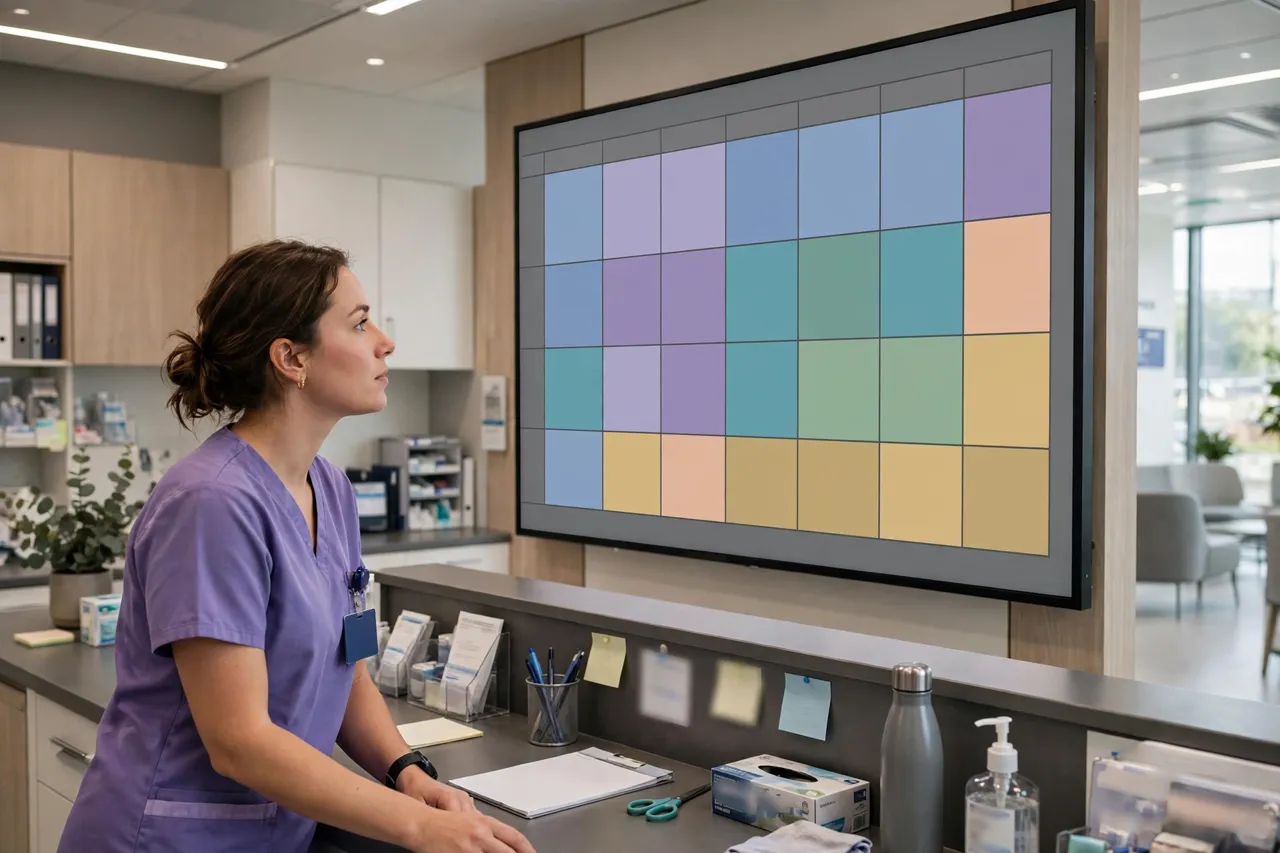
Your rota lives in Smart Square, and checking it takes under a minute once you know where to look — on the website or in the app. This guide covers both, plus the one reason a schedule often looks “empty” when nothing is actually wrong.
On the website
- Sign in at the official portal (meridian.smart-square.com) with your Network ID — the login guide has the full walkthrough.
- After sign-in, your schedule is the main view: your shifts laid out by date.
- Move between weeks using the date navigation to check upcoming rotas or look back at shifts you have worked.
- Open a shift to see its details — date, start and end time, and your unit or department.
In the Smart Square Go app
- Open the Smart Square Go app (set up with the organisation URL meridian.smart-square.com — see the app guide if you have not done this yet).
- Your upcoming shifts are shown on the app's schedule view as soon as you are signed in.
- Tap a day to see that shift's times and details, and scroll ahead to future weeks.
The website and the app show the same schedule from the same account — if a shift appears in one, it is in both. Check whichever is closer to hand.
Schedule looks empty? Three usual causes
- The schedule is not published yet. The most common cause by far. Departments publish rotas on their own cycle; dates beyond the published period simply look blank. It does not mean you have no shifts — it means they are not out yet. Check again closer to the period, or ask your manager when the next rota posts.
- You are looking at the wrong dates. It is easy to land a month ahead or behind. Return to the current week and move forward from there.
- You are signed in the wrong way. An odd or empty view can follow an Alternate Login route or a stale session. Sign out, then sign back in via Continue to SmartSquare — our login fixes guide covers the stubborn cases.
A habit worth having
Schedules change — swaps get approved, extra shifts get added, times move. Check your schedule the night before every shift rather than relying on a screenshot from last week, and glance again in the morning if your unit is busy. The app makes this a ten-second habit.
Facts on this page last verified 26 October 2026 against the official portal.
Frequently asked questions
Where do I see my Smart Square HMH schedule?
Sign in at meridian.smart-square.com — your schedule is the main view after login. In the Smart Square Go app, your upcoming shifts show on the schedule view as soon as you are signed in.
Why does my Smart Square schedule look empty?
Usually because your department has not published that period's rota yet — blank dates mean unpublished, not no shifts. Other causes: viewing the wrong dates, or signing in via the wrong route; sign out and back in via Continue to SmartSquare.
Do the website and the app show the same schedule?
Yes — both read the same account, so a shift visible in one is visible in the other. Check whichever is closer to hand.
When is the next schedule published?
Each department publishes on its own cycle. If future dates are blank, check again closer to the period or ask your manager when the next rota posts.
How often should I check my schedule?
The night before every shift, and again in the morning if your unit is busy. Schedules change as swaps are approved and shifts are added, so an old screenshot is not reliable.